DSE assessments are crucial for ensuring employee health and productivity in various work environments.
Regular DSE assessments help identify and mitigate potential health risks.
Employers are responsible for providing essential DSE equipment as per regulations.
Display Screen Equipment (DSE) assessments matter for every business that depends on screens for day-to-day work.
In today’s flexible world — from home offices to office space in Fitzrovia and coworking hubs — it’s vital to ensure that every workspace follows the proper standards, no matter how shared or temporary.
Business owners and operations professionals who invest in a thorough DSE assessment process see fewer employee health complaints, improved productivity, and a more positive work culture.
A rigorous DSE risk assessment looks at every corner of the workstation — whether that’s a dedicated desk in office space in Shoreditch or a home setup — covering chair positioning to lighting levels, so that teams stay comfortable and safe while using DSE equipment.
A well-planned DSE policy is a must-have for healthier, happier employees — whether they’re based in office space in Farringdon, working from home, or hot-desking across multiple sites.
This is especially relevant in coworking spaces, where desk-sharing and hot-desking are common and require regular checks to suit different DSE user requirements.
But where do you start?
What does DSE stand for?
DSE stands for Display Screen Equipment, referring to any device with a display screen that a worker uses regularly.
Common examples include desktop computers, laptops, tablets, and even smartphones, depending on how they’re used in the workplace.
In offices or coworking spaces alike, a DSE user typically describes someone who uses display screen equipment for a significant part of their working day.
This type of work can seem straightforward, yet it carries real health and safety considerations that matter for every business, large or small.
What is a DSE assessment?
A DSE assessment (Display Screen Equipment assessment) is a structured process that identifies and evaluates the setup, usage, and risks associated with display screen equipment in a work environment.
The aim is to ensure that employees have ergonomically correct workstations, suitable DSE equipment, and safe working habits, so their health is protected in the short and long term.
A DSE risk assessment looks at everything from screen height to keyboard placement, lighting levels, the desk itself, and the quality of seating.
This applies equally to large offices, compact home setups, and the communal areas of coworking spaces.
In shared work environments, users often work at different desks on different days, making regular checks even more essential.
Organisations often use a DSE workstation assessment checklist or a DSE assessment template to guide them through the process.
These resources help managers spot any risks before they become full-blown health issues.
There is also an option for a DSE self assessment, which allows employees to evaluate their own setup in line with DSE regulations and DSE guidance from reputable bodies like the Health and Safety Executive (HSE).
What are the risks of DSE assessment?
A DSE assessment isn’t a risk in itself.
The potential issue lies in failing to carry out a correct assessment or ignoring the recommendations it highlights.
When an assessment is incomplete, outdated, or disregarded, employees can face a range of health and safety challenges:
Visual discomfort: Unaddressed issues around screen glare, screen distance, or poor lighting can lead to headaches, blurred vision, or eye strain (AKA computer vision syndrome).
Stress and fatigue: If the working environment is poorly set up, employees can experience mental fatigue and stress.
How often should DSE assessment be done?
A DSE assessment should be a regular process.
Many businesses opt for yearly checks, but the real frequency depends on how often workstations change or how often a DSE user experiences any physical symptoms.
When should a DSE assessment be carried out?
Right at the start of someone’s employment or whenever their workstation setup changes.
If an employee moves to a new desk or role that involves different equipment, an updated assessment is a good idea.
If someone returns after an extended absence (such as maternity leave, long-term sick leave, or sabbatical), it’s also worth re-confirming their setup is still a good fit.
In workplaces with hot-desking policies — including many coworking spaces — it’s prudent to encourage workers to quickly assess each new desk before settling in.
Regular check-ins encourage a proactive approach and reveal early signs of discomfort or potential hazards before they escalate.
This can be informal (a brief self-check) or formal (a logged assessment), depending on the organisation’s size and risk profile.
How long does a DSE test take?
A typical DSE test (AKA a DSE assessment) often takes somewhere between 15 and 30 minutes for a single workstation, especially if the workstation remains unchanged and the user is in good health.
More complex setups, like multi-monitor arrangements, shared workstations, or multi-device environments, might take longer.
If an employee reports discomfort or has an ongoing health issue, it’s sensible to spend extra time ensuring their needs are addressed thoroughly.
There’s no prize for rushing through a DSE workstation assessment; the real win is identifying and correcting potential problems.
How much does a DSE assessment cost?
Costs vary — some organisations handle DSE assessments internally, using a DSE assessment template and a trained in-house assessor.
Others outsource to specialists who bring an external perspective.
The price depends on the complexity of each workstation and the number of employees.
A small business might keep costs to a minimum through a DSE self-assessment approach, with occasional help from an external provider if complex issues arise.
Larger organisations may invest in more formal evaluations conducted by health and safety professionals.
The cost of ignoring proper DSE risk assessment is much higher when you factor in potential sick leave, compensation claims, and lost productivity.
Funding a thorough assessment is an investment in your team’s health and the smooth running of daily operations.
Who pays for DSE equipment?
By law in the UK, the employer usually covers the cost of essential DSE equipment.
This might include an adjustable chair, footrest, and monitor risers if needed.
Some employees also require special keyboards, mouse devices, or DSE glasses if they need corrective eyewear specifically for screen work.
Employers are often expected to pay for these, in line with DSE regulations, though policies can vary slightly between organisations.
It’s worth clarifying your DSE policy so everyone knows what’s covered and where to go if they need help.
Who carries out a DSE assessment?
A DSE assessment can be carried out by an in-house health and safety officer, a manager with relevant training, or an external assessor.
Some businesses prefer bringing in third-party specialists to handle the entire process, especially in larger organisations with many workstations or known musculoskeletal risks.
Smaller businesses often assign the task to someone who has completed appropriate training and is familiar with DSE guidance.
Can I do my own DSE assessment?
Yes — DSE self assessment is a valid method, and it’s commonly used in organisations.
The employee uses a DSE workstation assessment checklist or a DSE assessment template to go through each requirement.
They might tick off areas that feel correct and highlight items that need improvement.
Self-assessment doesn’t replace professional judgment, though.
If an individual finds significant problems, it’s best for a trained or external assessor to advise on adjustments.
Should all employees who use DSE complete a DSE risk assessment form?
If they’re classed as habitual users, yes.
According to DSE regulations, any staff member who works at a display screen device for a significant portion of their day is considered a DSE user.
Completing a form (whether it’s a written document or an online version) allows employers to maintain proper records and ensure compliance.
When a new team member starts work, or an existing one moves to a different environment, it’s good practice to fill in a new DSE workstation assessment.
What is an example of a DSE?
Common examples of DSE are desktop computers, laptops, and tablets.
Smartphones can also be considered DSE if they’re used extensively for work.
A typical scenario is the office worker who sits at a desktop computer for more than two hours at a stretch.
Another is a graphic designer who works on a tablet device for long stretches.
In all cases, the correct DSE workstation assessment looks at furniture, posture, breaks, and ergonomics to reduce any negative impact on health.
Who requires a DSE assessment?
Anyone spending a sizable chunk of their working day in front of a screen could require a DSE assessment.
If there’s any doubt about whether someone qualifies as a DSE user, it’s wise to adopt a cautious stance and carry out the assessment.
Even part-time employees benefit from reviewing their workstation to confirm best practices.
Freelancers or hybrid workers can also fall into the category if a large proportion of their tasks depend on display screen equipment.
Many freelancers use flexible desks in coworking spaces, so encouraging them to do a DSE self-assessment can maintain safety standards even if they’re not working for a single employer.
What is a good practice for DSE?
Good practice for DSE includes consistent use of ergonomic principles and adherence to DSE guidance:
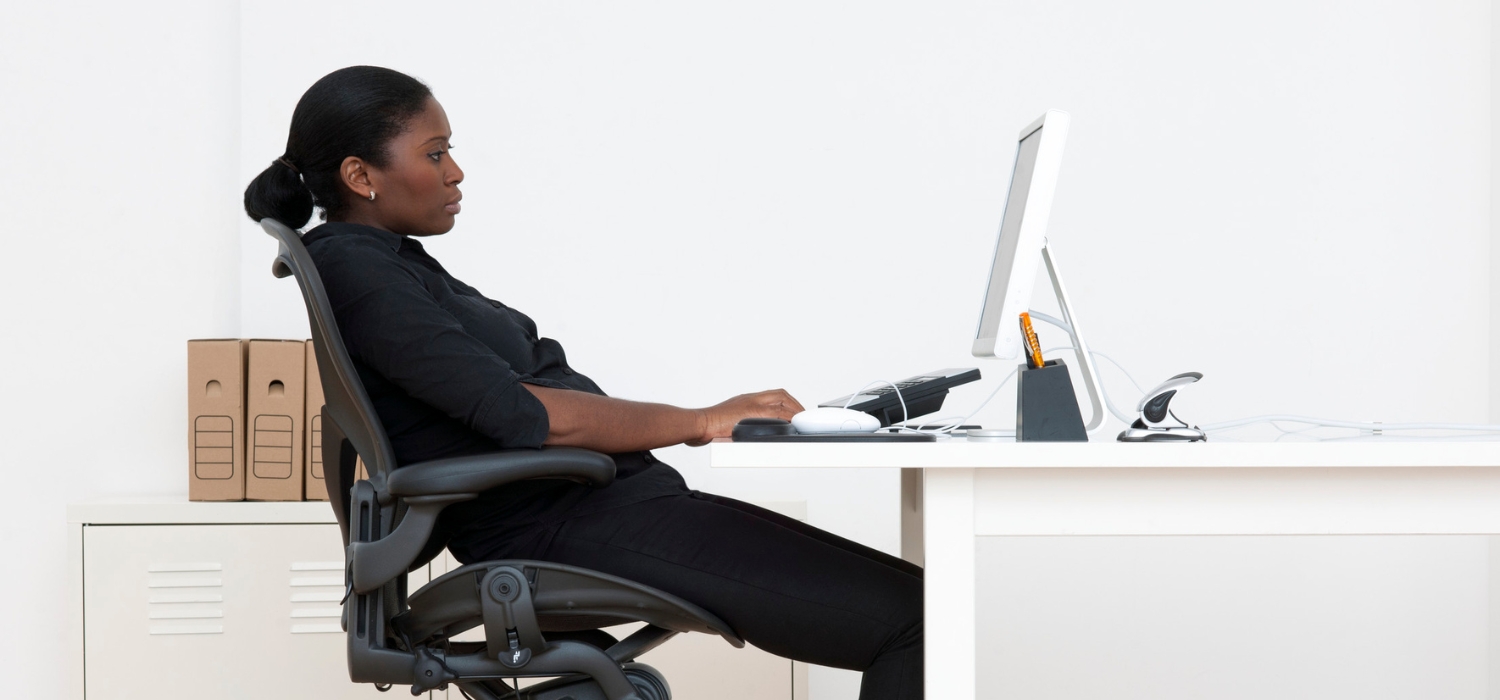
Chair adjustments: Sit with your feet flat on the floor or on a footrest, and position the lower back against the seat’s lumbar support.
Screen position: Place the monitor at roughly arm’s length and ensure the top of the screen is at eye level or just below.
Keyboard and mouse: Keep them within close reach and at a comfortable height, so the wrists remain straight.
Frequent breaks: Plan DSE breaks or micro-pauses every 20–30 minutes to reduce strain, standing up to stretch or taking a few seconds to look away from the screen.
Lighting: Minimise reflections and glare with appropriate lighting or adjustable blinds.
What are poor DSE practices?
Poor DSE practices ignore ergonomic guidelines and place employees at greater risk of injury:
Slouching or hunching over a keyboard.
Having the monitor at the wrong height or angle, forcing you to crane your neck.
Allowing the screen brightness or office lighting to create glare and strain eyes.
Skipping DSE breaks and staying seated for hours on end.
Improvising with makeshift stands, using laptops at awkward heights, or neglecting to report discomfort until it becomes a bigger problem.
What are the rules for DSE chairs?
A good DSE chair follows robust ergonomic principles to prevent back pain and discomfort that can arise from hours of seated, screen-based tasks.
DSE regulations and DSE guidance highlight key features, like:
Adjustable height: You should be able to raise or lower the seat to suit your leg length, with thighs roughly parallel to the floor.
Backrest adjustment: The backrest should tilt and provide lumbar support.
Stable base: Usually a five-star base on castors for mobility and stability.
Seat depth: Enough seat pan space to sit comfortably, with a small gap between the back of your knees and the seat.
Armrests (optional): If armrests are present, they should be adjustable and not interfere with desk access.
Where should your eyes be positioned when using DSE?
Eyes should align with the top of the screen or just a smidge below.
This position ensures a neutral neck posture.
If you’re straining to look up or tilting your head down, it might be time to adjust the monitor height or the chair.
If you wear DSE glasses, check that your prescription is correct for the viewing distance you typically use.
When are you entitled to an eye test from your employer for DSE?
If you’re classified as a regular DSE user, UK legislation generally entitles you to an appropriate DSE eye test.
The employer should cover the cost of the eye test and, if needed, basic glasses for display screen work.
Always confirm the process with your HR or health and safety team.
How long should DSE breaks be?
It’s not enough to have your monitor set at the right height if you stare at it all day without pause.
DSE breaks are recommended in DSE policy documents to let eyes, neck, and shoulders rest.
A common approach is working for 20–30 minutes, then taking a brief, task-related break or simply looking away from the screen for 20 seconds.
Dedicating a few moments to gently roll shoulders or stretch arms makes a world of difference.
Is DSE only used in an office?
Well, the term is widely associated with traditional office work, but it applies to any setting where staff spend extended periods using display screen equipment.
This includes warehouses, retail backrooms, coworking spaces, home offices, and even vehicles with onboard computer systems.
The same DSE policy that protects corporate office workers should extend to remote workers or any setting where employees work with screens for extended periods.
DSE self assessment for a changing workplace
Hybrid and remote work are more common than ever.
This shift raises the question of whether at-home setups require the same rigour as office setups. — the answer is yes.
If staff regularly work from home, it’s worth developing or adapting a DSE self-assessment for home-based employees.
Their comfort and health remain just as important outside of traditional office boundaries.
If your business uses coworking spaces as part of a hybrid approach, a self-assessment is equally beneficial.
Employees can check each hot desk for correct DSE alignment, identifying issues before they turn into bigger problems.
DSE guidance and policy
Organisations can maintain a DSE policy that outlines responsibilities, procedures, and equipment guidelines.
This policy typically points employees to relevant DSE guidance so they can understand and follow best practices.
The HSE (Health and Safety Executive) provides official resources to shape the policy, ensuring it aligns with DSE regulations.
DSE workstation assessment checklist
A DSE workstation assessment checklist streamlines the process of checking each element of the workstation:
1. Seating and posture
Chair height: Ensure the seat height lets users place their feet flat on the floor (or on a footrest) with thighs roughly parallel to the floor.
Backrest support: Check that the chair’s backrest has adjustable height and tilt, providing proper lumbar support.
Seat depth: Confirm there’s a small gap (two to three fingers’ width) between the back of the knees and the front edge of the seat.
Armrests (if needed): Make sure armrests don’t interfere with the desk. If they do, see if they can be lowered, removed, or adjusted.
Stability: Check that the chair has a five-star base and smooth castors for stability and easy movement.
2. Desk layout
Height: The desk should be at a level where users can comfortably type, with forearms parallel to the floor.
Space: Make sure there’s enough clear space under the desk for legs to move freely. Avoid storing boxes or clutter in the leg space.
Work surface: Position frequently used items (like the keyboard and mouse) within easy reach, so users don’t overstretch.
3. Monitor position
Eye level: Adjust the monitor so the top of the screen is at (or slightly below) eye level.
Viewing distance: Position the monitor about an arm’s length (50–70 cm) away from the user, though personal comfort may vary slightly.
Angle and tilt: Tilt the monitor so it’s easy to view without unnecessary head or neck movement.
Multi-monitor use: If more than one screen is used equally, they should be close together and at the same height. If one screen is primary, place it directly in front of the user.
4. Keyboard and mouse
Alignment: Place the keyboard directly in front of the user to avoid twisting shoulders or torso.
Height: Position the keyboard so that forearms can remain roughly horizontal, with wrists straight.
Mouse placement: Keep the mouse close to the keyboard to avoid overstretching the arm or shoulder.
Wrist rests: Provide or recommend a wrist rest if users find it helps them keep wrists neutral, but ensure it doesn’t encourage leaning on the rest while typing.
5. Screen and environment
Glare and reflections: Adjust blinds or lighting to reduce glare. If possible, position monitors at a right angle to windows, rather than directly in front or behind them.
Brightness and contrast: Instruct employees on how to adjust monitor settings to suit their personal comfort.
Temperature and ventilation: Make sure the workspace isn’t too hot, cold, or stuffy.
Noise levels: Consider whether ambient noise or distractions might contribute to stress or discomfort.
6. Accessories and additional equipment
Footrest: Provide a footrest if a user can’t comfortably place both feet on the floor.
Document holder: Offer a stand or document holder for users who need to refer to paper documents, so they’re not constantly twisting or looking down.
Monitor arm: Use a monitor arm if the desk design doesn’t allow for comfortable screen positioning.
Telephone headset: Where phone use is frequent, a headset can prevent neck strain from cradling a handset.
7. Breaks and movement
Encourage micro-breaks: Plan short breaks or posture changes every 20–30 minutes. Looking away from the screen for at least 20 seconds can help prevent eye strain.
Alternate tasks: If possible, rotate tasks so employees aren’t stuck in front of screens for extended periods without variation.
Standing and stretching: Suggest quick stretches or mini-exercises. Even standing up for a few minutes can help reduce fatigue.
8. Eye care
Eye test entitlement: Remind DSE users of their right to a regular DSE eye test if they habitually use screens as part of their job.
Screen distance: Double-check that employees wearing glasses have the correct prescription for their typical working distance.
Glare reduction: Ensure proper lighting and blinds to reduce harsh reflections causing eyestrain.
9. Assessment and records
DSE assessment template: Provide a clear form or online tool for employees to complete, noting any issues.
Self-Assessment: Encourage a DSE self assessment if in-person checks aren’t always feasible, such as in coworking spaces or for remote staff.
Frequency: Repeat assessments annually, or whenever there’s a major change in role, location, or equipment.
Documentation: Keep records of completed DSE assessments, recommended actions, and any follow-ups taken.
10. Training and awareness
New starters: Make sure employees receive DSE guidance when they join.
Policy sharing: Circulate your DSE policy so everyone understands rights and responsibilities.
Refresher sessions: Provide ongoing training or reminders, especially when employees move to different desks (hot-desking) or start working in new environments like coworking hubs.
11. Follow-up and action
Report discomfort: Encourage employees to speak up if they experience pain, fatigue, or eye strain.
Adjust and monitor: Where an issue arises, make immediate adjustments and record changes in the user’s file.
Professional input: If an employee reports significant discomfort that persists, consider bringing in an external health and safety professional or ergonomist.
Putting it all together
A solid DSE assessment process protects everyone and supports a healthier, more vibrant workspace.
When managers and employees both understand DSE requirements, the office environment becomes safer and more comfortable — and, in turn, more productive.
And it’s not just for traditional office blocks; coworking spaces can benefit immensely from taking regular DSE risk assessment steps.
In these shared environments, people might switch desks or workstations daily, making flexible but consistent DSE workstation assessment routines critical.
DSE is a concept that reaches beyond traditional office walls.
It’s a universal principle designed to keep people safe, comfortable, and productive whenever they’re using screens for work.
This responsibility isn’t a one-off; it’s a regular commitment that involves everyone — from business owners and HR teams to individual employees looking after themselves.
Embrace the value of DSE.
Employees will thank you with improved wellbeing, fewer days off, and a more energetic approach to daily tasks.
Win:win!
Explore office space in London
Priority neighbourhoods with deep coverage across the city.
From first office to scale-up headquarters, we have been there.
Secured a 14,000 sq ft CAT A leased HQ at White City Place
Introduced to 3 specialist fit-out partners, including Thirdway
Full market review spanning White City, Hammersmith & Soho
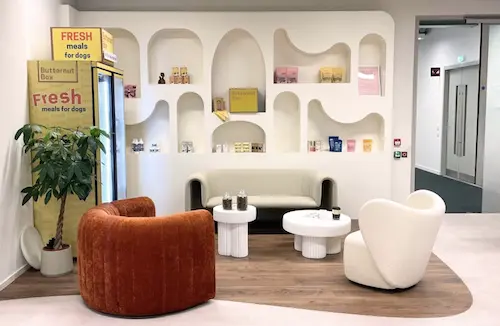
"Much like Butternut Box's brand, the project intent has been to pair a deeply human playfulness with elevated, premium design. Together we've crafted a joyful space which can bring out the best in all users, whether they be two or four legged."
"Tally helped us find our new office at lightning speed. Jules, Laura, and the team are the best at what they do. We wanted a rooftop, natural light, a central location, and a good deal. They got us 10+ solid options within 48hrs and scheduled all the viewings. We found our new space within 2 weeks."
Full market review across serviced, managed and leased office options
Custom layout designed by a workspace specialist - at no extra cost
Secured a self-contained 1,850 sq ft space in Leicester Square
"Tally Workspace exhausted the market and found us just what we were looking for within weeks. They were a breath of fresh air, extremely knowledgeable and helpful, and even assisted with design and fit-out. Very proactive at every stage, like an extension of our own team."
Secured a 2,000 sq ft self-contained HQ in Shoreditch
Workspace designer sourced and managed as part of the service
Used Tally Workspace on-demand between offices
"Tally Workspace has been an incredible help for Sifted. From understanding the office/remote first landscape to finding the right office for all of our requirements."
Shortlisted options across Marylebone, Victoria, Waterloo & Holborn
Secured a 60-desk office with internal meeting rooms in TCR
"You made this whole project smooth and actually enjoyable. You're well connected, which opened up options we wouldn't have found ourselves. I'm confident we would have missed this fantastic opportunity without your help, and you secured us a much better price than we could have achieved directly."
"I'd say it is a no brainer! A win win to use Tally Workspace to find your next space. No additional cost but endless extra value."
Founder & Lightning
"Not only are they very knowledgeable about the market, but they're lovely people to deal with. We're so happy with our final choice and can't wait to move!"
Finance Unlocked
"The space they found was perfect for our team, with loads of amazing breakout space, beautiful meeting rooms and a real emphasis on wellbeing."
Florence
"They got us 10+ solid options within 48hrs and scheduled all the viewings. Highly recommend. We found our new space within 2 weeks."
Cryptio
How Tally Workspace works
Tell us what you need
Team size, budget, location, and deal breakers. We'll ask about the things most people forget too.
searching...
We handle the search
We search our proprietary database then call landlords directly about unlisted spaces. Often back to you within a day.
We handle the detail
Contracts are where most searches fall apart. We review everything and negotiate before you sign.
You move in confident
Best space, best terms, timeline that fits your growth. You know exactly what you're signing.
Tell us what you're looking for
Find an office today
Using our extensive mapping of startup and scaleup office space, find an office that fits your needs and your culture in just a few minutes.